
Streamline Your Schedule: The Ultimate Guide to Google Calendar
The modern world demands efficiency, and nowhere is this more apparent than in the management of our time. Juggling work commitments, personal appointments, family events, and leisure activities can quickly become overwhelming. Fortunately, a powerful and intuitive tool exists to bring order to the chaos: Google Calendar. This comprehensive guide is designed to equip you with the knowledge and strategies to transform your schedule from a source of stress into a well-oiled machine. We’ll delve into setting up and customizing your calendar, explore powerful management techniques, unlock the benefits of integration and collaboration, and uncover advanced features that will truly elevate your productivity.
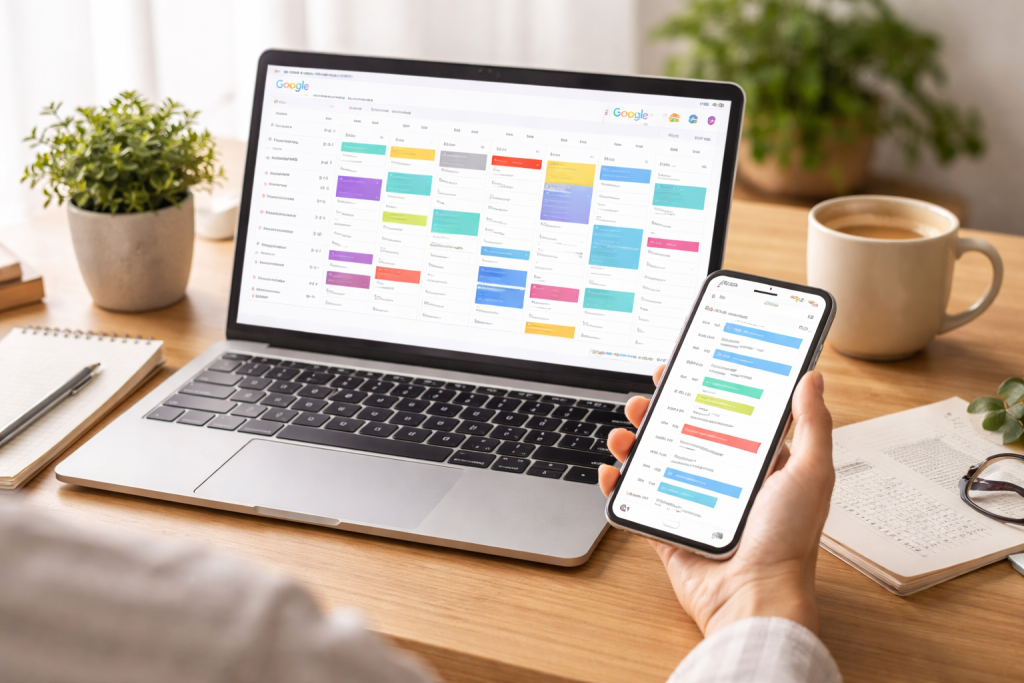
At its core, Google Calendar is a free, web-based, and mobile application that allows users to create, view, and manage events and appointments. It’s more than just a digital diary; it’s a dynamic platform designed to help you organize your life, both professionally and personally. Accessible from any device with an internet connection, it syncs seamlessly across your smartphone, tablet, and computer, ensuring you’re always up-to-date. Its intuitive interface makes it easy to grasp, even for those new to digital scheduling tools.
Contents
- 1 The Philosophy Behind Effective Scheduling
- 2 Why Google Calendar Stands Out
- 3 Your First Steps: Creating an Account and Setting the Basics
- 4 Personalizing Your View and Preferences
- 5 Creating and Managing Different Calendars
- 6 Mastering Event Creation: Details Matter
- 7 Proactive Scheduling and Time Blocking
- 8 Seamless Integration with the Google Ecosystem
- 9 Connecting with Third-Party Applications
- 10 Automating Tasks with Third-Party Integrations
- 11 Sharing Your Calendar with Specific Individuals
- 12 Working with Shared Calendars
- 13 Creating Group Calendars for Teams and Families
- 14 Exploring Appointment Slots if You’re a Service Provider
- 15 Utilizing Event Templates for Repetitive Tasks
- 16 Leveraging Keyboard Shortcuts
- 17 Using Google Calendar with Google Assistant and Voice Commands
- 18 The Importance of Using the Mobile App
- 19 Developing a Routine for Calendar Review
- 20 Regularly Decluttering and Optimizing Your Schedule
- 21 The Long-Term Benefits of Effective Scheduling
The Philosophy Behind Effective Scheduling
The underlying philosophy of effective scheduling, and by extension Google Calendar, is to move from a reactive approach to a proactive one. Instead of simply reacting to demands as they arise, effective scheduling involves intentional planning, prioritizing, and allocating time for all aspects of your life. This mindset shift is crucial for achieving a healthy work-life balance and reducing the feeling of being constantly overwhelmed. Google Calendar provides the framework to implement this philosophy at your fingertips.
Why Google Calendar Stands Out
Several factors contribute to Google Calendar’s widespread adoption and enduring popularity. Its robust feature set is constantly being refined, and its integration with the broader Google ecosystem (Gmail, Google Drive, Google Meet) offers unparalleled convenience. The ease with which it can be shared and collaborated on makes it an indispensable tool for teams and families alike. Furthermore, its constant updates and commitment to user experience ensure it remains a leading solution for personal and professional time management.
Getting started with Google Calendar is straightforward, but understanding its customization options unlocks its true potential. From color-coding to defining your working hours, personalization is key to making the calendar work uniquely for you.
Your First Steps: Creating an Account and Setting the Basics
If you have a Google account, you already have access to Google Calendar. Simply navigate to calendar.google.com. If you don’t have one, creating a Google account is a quick process. Once logged in, you’ll see a default calendar, usually named after your Google account. This is your primary calendar, and you can begin adding events immediately.
Personalizing Your View and Preferences
The first layer of customization involves tailoring how you view your calendar. You can choose from daily, weekly, monthly, or even a four-day agenda view. Time zone settings are critical, especially if you work with people in different regions, and they can be adjusted in the general settings. You can also decide how the week starts—typically Sunday or Monday.
Color-Coding for Clarity
A visually organized calendar is an efficient calendar. Google Calendar allows you to assign a distinct color to each of your calendars. This is incredibly useful if you maintain multiple calendars (e.g., work, personal, family, specific projects). By assigning a specific hue to each, you can instantly differentiate between commitments at a glance, making it easier to spot conflicts or understand your overall schedule density.
Defining Your Working Hours and Events
Crucially, you can set your default working hours within Google Calendar. This not only helps you block out time for focused work but also informs others when you are generally available. When people try to schedule meetings with you, Google Calendar will flag potential conflicts if they fall outside your defined availability. You can also set default event durations, which can save you time when creating recurring appointments.
Creating and Managing Different Calendars
The true power of Google Calendar lies in its ability to manage multiple calendars under one umbrella. This allows for sophisticated organization. You might have a “Work” calendar for professional meetings and deadlines, a “Personal” calendar for social events and appointments, a “Family” calendar for shared family activities, and even project-specific calendars.
Adding New Calendars and Naming Conventions
To create a new calendar, navigate to the “Other calendars” section on the left sidebar, click the plus sign, and select “Create new calendar.” Give your new calendar a descriptive name. Clear and concise naming conventions are essential for easy identification and management, especially as the number of calendars grows.
Setting Permissions for Individual Calendars
Each calendar you create can have its own set of sharing permissions. This granular control is vital for privacy and effective collaboration. You can choose who can see specific calendars, whether they can see event details or just free/busy information, and even if they can make changes or add events.
Once your calendar is set up, the real work of efficient management begins. This involves adopting smart habits and leveraging Google Calendar’s features to their fullest.
Mastering Event Creation: Details Matter
The more detail you include in your event descriptions, the more useful your calendar becomes. Beyond just the title and time, consider adding:
- Location: Essential for physical meetings.
- Attendees: Allows for easy invitation and tracking.
- Notes: Include agendas, preparation materials, or follow-up actions.
- Attachments: Link relevant documents directly to the event for quick access.
- Reminders: Set multiple reminders at different intervals to avoid missing crucial events.
Utilizing Recurring Events
Many of your commitments are likely to happen on a regular basis—weekly team meetings, daily workout sessions, or monthly bill payments. Google Calendar’s recurring event feature is a significant time-saver. Instead of manually creating each instance, you can set up a recurring event that automatically populates your calendar at the desired frequency (daily, weekly, monthly, yearly, or custom intervals).
Setting Event Notifications Effectively
Don’t underestimate the power of timely notifications. Google Calendar allows you to set default notification preferences for all your events, as well as customize them on an individual basis. This can include email notifications or pop-up alerts, ensuring you never miss an important appointment. For critical events, consider setting multiple reminders at increasing intervals.
Proactive Scheduling and Time Blocking
Moving beyond simple event creation, proactive scheduling involves actively allocating time for your tasks and priorities. This is where “time blocking” comes into play.
The Power of Time Blocking
Time blocking is the practice of scheduling specific blocks of time for particular tasks or types of work. Instead of just having a general to-do list, you dedicate a slot on your calendar to actually do that task. This helps you focus, minimizes distractions, and ensures that important work doesn’t get pushed aside by more immediate but less crucial demands.
Blocking Out Focus Time and Personal Time
Remember to schedule blocks for deeply focused work, creative endeavors, or even personal errands and relaxation. These blocks are just as important as meetings and deadlines. By treating them with the same respect, you are actively prioritizing your well-being and overall productivity.
The true synergy of Google Calendar is unlocked when it works in concert with other applications you use daily. This reduces context switching and automates tasks, leading to significant efficiency gains.
Seamless Integration with the Google Ecosystem
Google Calendar is naturally integrated with other Google services.
Gmail and Google Meet
When you receive an email with event details, Google Calendar can often suggest adding it to your calendar. Similarly, when you create an event, you can easily add a Google Meet link for virtual meetings, streamlining the process of setting up online collaborations.
Google Tasks and Reminders
For smaller, actionable to-dos, Google Tasks can be a useful companion. You can create tasks and then, if they require a specific time commitment, easily convert them into calendar events. This bridges the gap between simple task management and scheduled action.
Connecting with Third-Party Applications
The real magic happens when you connect Google Calendar with external tools. Many popular productivity and project management apps offer direct integration.
Project Management Tools
Tools like Asana, Trello, or Monday.com can sync with your Google Calendar, displaying deadlines and project milestones directly on your schedule. This provides a consolidated view of your commitments across different platforms.
Communication and Collaboration Platforms
Applications like Slack can be configured to send notifications about upcoming calendar events or even allow you to create calendar events directly from Slack messages.
Automating Tasks with Third-Party Integrations
Services like Zapier or IFTTT (If This Then That) allow you to create custom automated workflows. For instance, you could set up a Zapier integration to automatically create a new Google Calendar event when a new row is added to a specific Google Sheet or to add a calendar event when a new task is assigned to you on a project management platform.
Google Calendar is a powerful tool for individual organization, but its collaborative features make it indispensable for teams, families, and groups.
Sharing Your Calendar with Specific Individuals
You can share your entire calendar with individuals or groups, granting them varying levels of access. This is ideal for sharing your work schedule with colleagues or your family’s activities with your spouse.
Controlling Permissions: Viewing vs. Editing
When sharing a calendar, you have precise control over what others can see and do. You can allow them to:
- See only when you are free or busy.
- See all event details.
- Make changes to events.
- Add events to your calendar.
This granular control ensures that you maintain privacy while facilitating necessary collaboration.
Sharing Publicly or with a Link
For broader sharing, such as a team’s upcoming training sessions or a community group’s event schedule, you can make a calendar public or share it via a link. This allows anyone with the link to view the calendar, but without the ability to make changes unless explicitly granted permission.
When others share their calendars with you, they will appear under the “Other calendars” section on your sidebar. You can toggle their visibility on and off to tailor your view and identify potential conflicts.
Identifying and Resolving Conflicts
When viewing multiple shared calendars, it becomes immediately apparent where overlaps and conflicts occur. This proactive identification helps you reschedule appointments, avoid double bookings, and ensure smoother coordination.
Scheduling Meetings with Multiple Attendees
Google Calendar’s “Find a time” feature is a game-changer for scheduling meetings with multiple participants. When you invite attendees to an event, Google Calendar analyzes everyone’s availability (based on the calendars they’ve shared with you and their set working hours) and suggests optimal times that work for everyone. This eliminates the tedious back-and-forth of finding a suitable slot.
Creating Group Calendars for Teams and Families
For ongoing shared activities, creating a dedicated group calendar is highly recommended. This could be for a sports team’s game schedule, a club’s meeting times, or a family’s vacation plans. Everyone can add and manage events on this shared calendar, fostering a sense of collective ownership and responsibility.
Beyond the core functionalities, Google Calendar is packed with advanced features and clever tricks that can significantly boost your efficiency and help you reclaim valuable time.
Exploring Appointment Slots if You’re a Service Provider
If you offer services where clients need to book appointments with you, Google Calendar’s “Appointment slots” feature is invaluable. You define blocks of time during which clients can book appointments. They can then see your availability and select a slot that works for them, with the booking automatically added to your calendar and a confirmation sent to them. This completely automates the appointment booking process.
Utilizing Event Templates for Repetitive Tasks
For events that you create frequently with similar details, you can create an event template. While not a direct feature in the traditional sense, you can achieve this by creating a recurring event and then duplicating it as needed or by copying and pasting event details from a previously created event. This streamlines the creation of recurring meetings, recurring tasks, or regular client check-ins.
Leveraging Keyboard Shortcuts
Like many applications, Google Calendar offers a suite of keyboard shortcuts that can speed up your workflow. For example, pressing ‘C’ creates a new event, ‘D’ switches to day view, ‘W’ to week view, and ‘M’ to month view. Familiarizing yourself with these can make navigating and managing your calendar much faster.
Finding Shortcuts and Enabling Them
You can find a comprehensive list of keyboard shortcuts by pressing the question mark ‘?’ key while in Google Calendar. Ensure that keyboard shortcuts are enabled in your general settings for them to function.
Using Google Calendar with Google Assistant and Voice Commands
The integration with Google Assistant allows for hands-free interaction with your calendar. You can ask Google Assistant to:
- “When is my next meeting?”
- “Add ‘dentist appointment’ to my calendar for Tuesday at 2 PM.”
- “What do I have scheduled for tomorrow?”
This is incredibly useful when you’re on the go or have your hands full.
The Importance of Using the Mobile App
The Google Calendar mobile app is essential for staying connected and managing your schedule on the go. It provides access to all your calendars, allows for quick event creation, and delivers timely notifications. Ensure you have it installed and configured correctly on your smartphone.
Ultimately, the goal of mastering Google Calendar is to enhance your productivity and improve your overall time management. By consistently applying the principles and features discussed, you can transform your relationship with your schedule.
Developing a Routine for Calendar Review
Make it a habit to review your calendar at the beginning and end of each day. The morning review helps you prepare for the day ahead, while the evening review allows you to assess what was accomplished, make adjustments for the next day, and clear your mind before resting.
Regularly Decluttering and Optimizing Your Schedule
Your schedule is not static; it’s a living document. Periodically review your calendar to identify events that are no longer necessary, commitments that can be delegated, or times that are consistently being overbooked. Don’t be afraid to prune your commitments to make space for what truly matters.
Rescheduling as Needed
Life is unpredictable. When unexpected events arise or priorities shift, be prepared to reschedule existing commitments. Use the “Find a time” feature to easily find new slots that work for all attendees, minimizing disruption.
Setting Boundaries with Your Calendar
Your calendar is a powerful tool for setting boundaries, both for yourself and with others. Use time blocks to protect your focus time, schedule personal appointments as non-negotiables, and communicate your availability clearly.
The Long-Term Benefits of Effective Scheduling
By consistently using Google Calendar effectively, you’ll find yourself experiencing reduced stress, improved work-life balance, and a greater sense of control over your time. You’ll become more proactive, less reactive, and ultimately, more productive. Google Calendar is more than just an app; it’s a partner in your journey towards a more organized, efficient, and fulfilling life. Embrace its capabilities, experiment with its features, and watch as your schedule transforms from a burden into a powerful tool for success.

The LearnZA Team is a group of passionate learners and content creators focused on delivering high-quality, practical knowledge in a simple and easy-to-understand format.