
From Chaos to Clarity: The Ultimate Guide to Organizing Your Laptop Files
In today’s digital age, our laptops have become repositories for vast amounts of information—documents, photos, videos, music, and countless other digital artifacts. Without a systematic approach, this digital landscape can quickly transform into a chaotic mess, hindering productivity and creating unnecessary stress. The ability to efficiently locate and access files is paramount for both personal and professional success. This comprehensive guide will navigate you through the journey from digital disarray to organized clarity, empowering you to take control of your laptop’s file system and unlock a new level of efficiency.
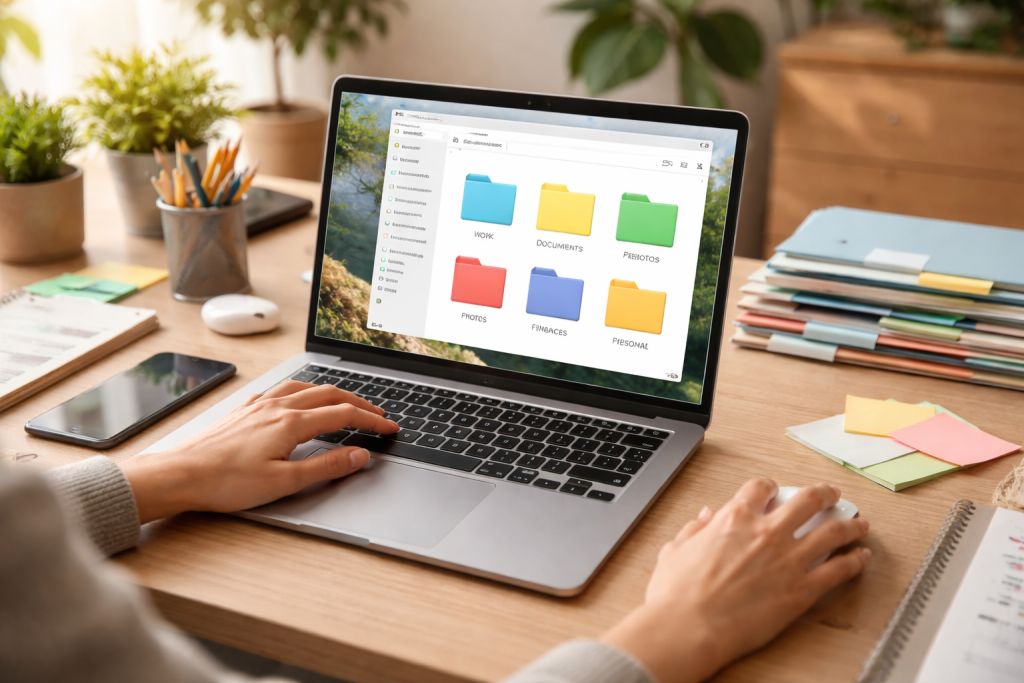
We often relegate the seemingly trivial task of organizing digital files to the bottom of our to-do lists. However, the cumulative impact of disorganization is extensive, impacting everything from your daily workflow to your mental well-being. A well-organized file system is not merely about aesthetics; it’s a foundational element of digital competence.
Contents
- 1 Boosting Productivity and Saving Time
- 2 Enhancing Data Security and Backup Strategies
- 3 Reducing Cognitive Load and Stress
- 4 Implementing Consistent Naming Conventions
- 5 Leveraging Tags and Metadata for Enhanced Searchability
- 6 Regular Purging and Archiving of Unnecessary Files
- 7 Utilizing Operating System Features (Finder, File Explorer)
- 8 Exploring Third-Party File Organizer Applications
- 9 Leveraging Cloud Storage Services for Synchronized Organization
- 10 Adopting a Hierarchical Structure
- 11 Designing Top-Level Categories
- 12 Implementing Subfolders for Granular Organization
- 13 Employing the “Fewer Clicks” Rule
- 14 Automating File Organization Tasks
- 15 Scheduling Regular File Maintenance Sessions
- 16 Dedicated Folders for Each Media Type
- 17 Categorizing Photos by Date, Event, or Subject
- 18 Organizing Videos by Project, Event, or Theme
- 19 Using Music Libraries and Metadata Management
- 20 Regular Review and Adaptation of Your System
- 21 Educating Others on Your Organizational Standards
- 22 Backing Up Your Organized Files Regularly
Boosting Productivity and Saving Time
Imagine the frustration of searching for a crucial report just before a meeting, only to discover it buried deep within a labyrinth of haphazardly named folders. This wasted time, repeated countless times throughout the week, significantly erodes productivity. Logically categorizing and making files easily accessible eliminates time-consuming searches, enabling you to concentrate on the current task. The mental burden of knowing where everything is, or at least how to find it quickly, frees up cognitive resources that can be dedicated to more important endeavors. This efficiency translates directly into more accomplished tasks and less stress.
Enhancing Data Security and Backup Strategies
A chaotic file system can also pose a significant security risk. It can be challenging to properly secure important documents, financial records, and personal photos scattered across various locations. When you clearly understand where your critical data resides, you can implement more effective backup strategies, ensuring that vital information is protected against accidental deletion, hardware failure, or cyber threats. When you structure your data, it simplifies and enhances the reliability of regular backups by clearly identifying the necessary copies and their locations.
Reducing Cognitive Load and Stress
The brain is wired for order. A cluttered digital environment mirrors a cluttered physical workspace, contributing to mental fatigue and stress. The constant underlying worry about missing files or the effort required to locate them can be a subtle but persistent drain on your mental energy. Conversely, a well-organized file system provides a sense of control and calm. Knowing that your digital life is in order reduces cognitive load, allowing you to approach your work and personal projects with greater clarity and focus. It’s akin to having a clean desk—it creates a more conducive environment for thought and action.
The journey to digital clarity begins with establishing effective sorting and categorization practices. This is where you lay the groundwork for a sustainable organizational system.
Implementing Consistent Naming Conventions
This is perhaps the single most impactful step you can take. Any file system suffers greatly from inconsistent file names. Establish a clear and consistent naming convention for all your files. For example, for documents, you could use a format like YYYY-MM-DD_ProjectName_DocumentType_Version.extFor photos, YYYY-MM-DD_EventName_Description.ext. The key is regularity. Everyone in a shared environment should adhere to these conventions for optimal collaboration. Avoid generic names like “document1.docx” or “image.jpg,” as these provide no context and will inevitably lead to confusion. Detailed file names act as miniature summaries, allowing you to grasp a file’s content without even opening it.
Leveraging Tags and Metadata for Enhanced Searchability
While naming conventions are crucial, they can only convey so much information. Modern operating systems and file management tools offer the ability to add tags and metadata to files. These additional pieces of information can include keywords, project names, client names, or even descriptions. By tagging files, you create multiple pathways for retrieval. For instance, a “meeting notes” document could be tagged with “Project X,” “Client Y,” and “August 2023.” This allows you to find it whether you search by project, client, or date, significantly expanding your search capabilities beyond just the file name.
Regular Purging and Archiving of Unnecessary Files
One of the biggest contributors to digital clutter is the accumulation of unnecessary files. Make it a habit to regularly review your files and remove any unnecessary items. This includes old drafts, duplicate files, downloaded temporary items, and outdated documents. For files that you might need in the future but aren’t actively using, consider archiving them. This involves moving them to a separate “Archive” folder or an external drive. This declutters your primary storage, making it easier to navigate current projects while still retaining historical information. Establishing a weekly or monthly “digital cleanup” routine can be incredibly effective.
While fundamental principles are key, a variety of software tools can significantly enhance your file organization efforts. These tools often provide features beyond the basic capabilities of your operating system’s file explorer.
Utilizing Operating System Features (Finder, File Explorer)
Both macOS Finder and Windows File Explorer offer robust features that can be leveraged for organization. Familiarize yourself with their advanced search capabilities, including filtering by file type, date modified, and size. Learn to use smart folders or saved searches (macOS) and quick access (Windows) to create virtual collections of frequently used files or files meeting specific criteria. Customizing your sidebar with shortcuts to important folders can also drastically improve navigation speed. These built-in tools, when mastered, are powerful foundational elements of a good organizational system.
Exploring Third-Party File Organizer Applications
For those seeking more advanced functionalities, a plethora of third-party file organizer applications are available. Tools like Devonthink, EagleFiler, and TagSpaces go beyond simple folder structures by allowing extensive tagging, annotation, and linking of files, creating a highly interconnected knowledge base. These are particularly useful for researchers, writers, or anyone dealing with large volumes of diverse information. They often include features for OCR (Optical Character Recognition) to make scanned documents searchable and advanced categorization using AI.
Leveraging Cloud Storage Services for Synchronized Organization
Cloud storage services such as Google Drive, Dropbox, and OneDrive are not just for backups; they are powerful tools for synchronized file organization. By storing your files in the cloud, you can access them from any device, share them easily, and ensure that they are always up-to-date. Establish the same organizational structure in your cloud storage as you do on your local drive. Many cloud services also offer version history, allowing you to revert to previous versions of a document, a feature invaluable for collaborative projects or when accidental changes are made. The ability to work seamlessly across multiple devices with a consistent file structure is a significant advantage.
The backbone of any effective file organization system is a logical and intuitive folder structure. This is where the principles of hierarchy and categorization truly come into play.
Adopting a Hierarchical Structure
Think of your folder structure as a tree. At the “root” are broad categories, and as you delve deeper, the categories become more specific. A common approach is to start with major personal and professional categories. For example, top-level folders might include “Personal,” “Work,” “Academics,” and “Media.” Within “Work,” you might have subfolders for “Clients,” “Projects,” “Administration,” etc. Each level should represent a logical grouping, making it easy to infer where specific files should reside. Avoid creating excessively deep folder structures (more than 4-5 levels deep), as this can make navigation cumbersome.
Designing Top-Level Categories
The initial top-level categories are crucial, as they dictate the overall organization of your digital space. These should be broad enough to encompass all your digital assets without being overly general. Consider your primary roles and activities. For a student, “Courses,” “Research,” and “Personal” might be suitable. For a freelancer, “Clients,” “Marketing,” and “Finances” could be top-level. The goal is to create intuitive categories that immediately make sense to you and anyone else who might need to access your files.
Implementing Subfolders for Granular Organization
Once your top-level categories are established, create subfolders to further refine your organization. Within a “Projects” folder, you might have individual folders for each project, and within each project folder, subfolders for “Documents,” “Designs,” “Communication,” and “Deliverables.” The trick is to strike a balance between detailed categorization and overcomplication. Each subfolder should serve a clear purpose and contain a manageable number of files. If a subfolder becomes too crowded, it might be a sign that it needs further subdivision.
Decluttering is an ongoing process, not a one-time event. Regular maintenance is key to preventing digital chaos from re-emerging.
Employing the “Fewer Clicks” Rule
The “Fewer Clicks” rule is a simple yet powerful principle: the fewer clicks it takes to find a file, the better organized it is. When designing your folder structure, minimize the number of nested folders. If you find yourself repeatedly clicking through many levels to access a common file, rethink that part of your hierarchy. Shortcuts and aliases can also help reduce clicks to frequently accessed items, bringing them closer to your digital fingertips. The goal is to make file retrieval as frictionless as possible.
Automating File Organization Tasks
Several tools and operating system features allow for automation. On macOS, Automator can be used to create workflows that move files based on their type, name, or creation date. On Windows, third-party utilities or even simple batch scripts can perform similar functions. For example, you could automate the process of moving all downloaded PDFs to a specific “Downloads Archive” folder after a week. This “set it and forget it” approach significantly reduces the manual effort required for ongoing organization. Look for opportunities to automate repetitive tasks.
Scheduling Regular File Maintenance Sessions
The most meticulously organized system will eventually degrade without regular upkeep. Schedule dedicated “file maintenance” sessions—perhaps 30 minutes once a week or an hour once a month. During these sessions,
review your downloads folder, delete unnecessary screenshots, archive old projects, and ensure your naming conventions are still being followed. Make it a routine, just like cleaning your physical workspace. This consistent effort prevents the buildup of clutter and keeps your digital environment pristine and efficient.
Multimedia files, due to their sheer volume and often sentimental value, require special attention when it comes to organization.
Dedicated Folders for Each Media Type
Resist the urge to dump all your photos, videos, and music into a single “Media” folder. Create dedicated top-level folders for “Photos,” “Videos,” and “Music.” This immediately provides a clear distinction and simplifies general navigation. Within each of these, you can then apply further layers of organization. This separation is crucial for managing the distinct characteristics and access patterns of each media type.
Categorizing Photos by Date, Event, or Subject
Within your “Photos” folder, establishing a robust subfolder structure is paramount. A popular and highly effective method is to organize by date (e.g., “2023” -> “2023-01 January” -> “2023-01-15_BirthdayParty”). Alternatively, you could categorize by event (“Vacations” -> “Europe_Summer_2023”) or subject (“Family,” “Landscapes,” “Pets”). Whichever method you choose, consistency is key. Additionally, many photo management software solutions offer facial recognition and geotagging, which can further aid in discovery.
Organizing Videos by Project, Event, or Theme
Video files, particularly if you create your own, can consume significant storage space and require careful organization. Similar to photos, categorize them by event (“Wedding_2022,” “Holiday_Trip_Japan”) or by project if you’re a content creator (“YouTube_Project_VlogSeries1”). For casual users, a simple chronological order within broad categories is often sufficient. Consider using smart naming conventions that include the date and a brief description of the video’s content.
Using Music Libraries and Metadata Management
For music, relying on the built-in capabilities of music players like iTunes/Apple Music, Spotify (local files), or VLC can be highly beneficial. These applications are designed to manage vast libraries, using metadata such as artist, album, genre, and year to organize your collection. Ensure your music files have accurate and complete metadata. Tools exist to automatically fetch and embed this information into your music files, turning a folder of unidentifiable tracks into a fully searchable and playable library. Avoid storing music chaotically outside of a dedicated music library structure.
The ultimate test of an organizational system is its longevity. Without ongoing commitment, even the best initial setup can crumble.
Regular Review and Adaptation of Your System
Your digital life is dynamic; your organizational system should be too. Periodically review your folder structure and naming conventions. Do they still serve your current needs? Are there new types of files you’re accumulating that require new categories? Don’t be afraid to adapt and evolve your system. What worked perfectly a year ago might need tweaking today. This flexibility ensures your system remains relevant and effective.
Educating Others on Your Organizational Standards
If you share your laptop or collaborate on projects, it’s vital to educate others on your organizational standards. Share your naming conventions, folder structure guidelines, and any automation rules you have in place. Consensus and adherence from everyone involved are critical for maintaining a clean and collaborative digital environment. A shared understanding prevents digital chaos from spreading.
Backing Up Your Organized Files Regularly
Finally, and perhaps most importantly, consistently back up your organized files. An impeccably structured digital archive is useless if it’s lost due to hardware failure or other unforeseen circumstances. Implement a robust backup strategy that includes both local backups (external hard drive) and cloud backups. Regularly test your backups to ensure they are recoverable. An organized file system makes the backup process significantly smoother and more reliable, safeguarding all your hard work and valuable digital assets. By committing to these practices, you transform your laptop from a source of digital stress into a finely tuned instrument of productivity and clarity, empowering you to navigate your digital world with confidence and ease.

The LearnZA Team is a group of passionate learners and content creators focused on delivering high-quality, practical knowledge in a simple and easy-to-understand format.