
Efficiency at Your Fingertips: The Ultimate Guide to Keyboard Shortcuts for Productivity
Keyboard shortcuts are sequences of one or more keystrokes that perform commands or actions within computer applications and operating systems. Their purpose is to increase user efficiency by reducing the need to interact with graphical user interfaces (GUIs) through a mouse or trackpad. This guide explores the fundamental principles and practical applications of keyboard shortcuts, aiming to provide a comprehensive understanding for individuals seeking to enhance their digital workflow.
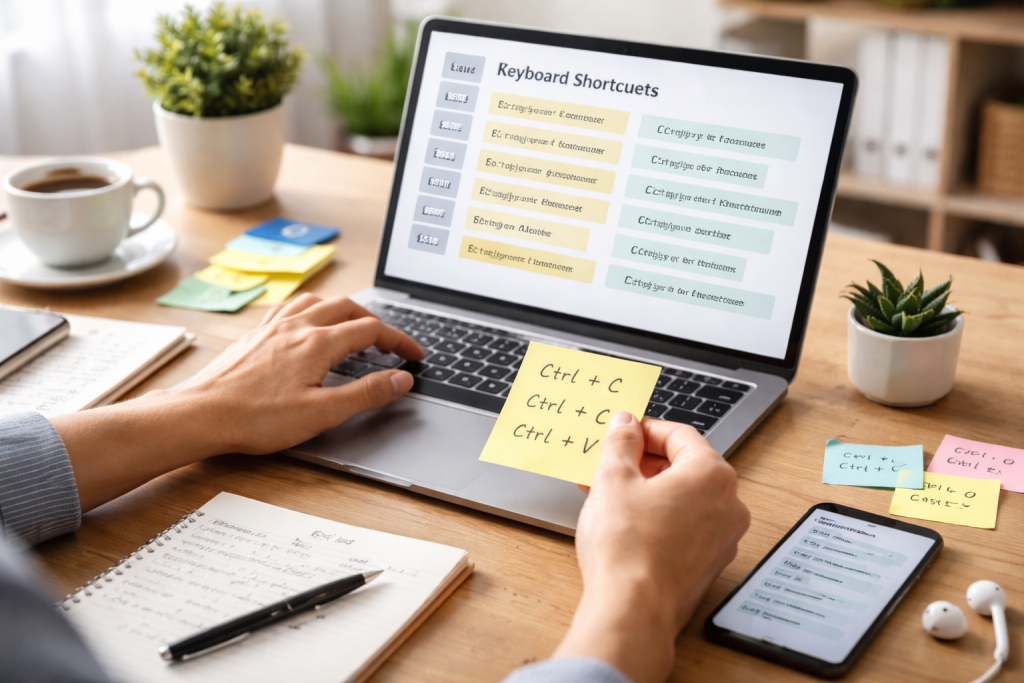
Contents
- 1 Understanding the Mechanics of Keyboard Shortcuts
- 2 Core Keyboard Shortcuts for Everyday Computing
- 3 Advanced Shortcut Strategies for Power Users
- 4 Implementing Keyboard Shortcuts in Your Workflow
- 5 Embracing the Keyboard as a Productivity Tool
Understanding the Mechanics of Keyboard Shortcuts
Keyboard shortcuts operate by sending specific signals to the operating system or application. These signals are interpreted as commands, bypassing the visual navigation typically employed with a mouse. Mastering these shortcuts can be likened to learning a new language; initially, it requires conscious effort, but with practice, it becomes intuitive and significantly accelerates interaction.
The Architecture of a Shortcut: Modifiers and Keys
Most keyboard shortcuts involve the use of modifier keys, which are keys that change the function of other keys when pressed in combination. The primary modifier keys commonly found on keyboards include:
- Ctrl (Control): Used for a wide range of commands, often related to file management, text manipulation, and application control.
- Alt (Alternate): Frequently used for menu access, special character input, and application-specific functions.
- Shift: Primarily used for accessing uppercase letters, symbols above numbers, and for extending selections.
- Windows key (or Command key on macOS): Opens the Start menu or Spotlight search and acts as a modifier for system-level commands.
When combined with other keys, these modifiers trigger specific actions. For instance, “Ctrl+C” Ctrl + C universally signifies “copy”, while “Alt+Tab” Alt + Tab allows for quick switching between open applications. The specific combination determines the command, and applications often extend the standard set of shortcuts with their own context-specific sequences.
The Evolution of Shortcut Design
The design of keyboard shortcuts has evolved alongside computing. Early command-line interfaces relied entirely on text-based commands. Shortcuts emerged with the advent of GUIs, serving as a bridge between the speed of command-line interaction and the user-friendliness of visual interfaces. Developers continue to refine shortcut schemes, aiming for logical groupings and mnemonic associations to aid user recall. The objective is to create a seamless flow, where the keyboard becomes an extension of the user’s thought process rather than an impediment.
Core Keyboard Shortcuts for Everyday Computing
While specific shortcuts vary across applications, a foundational set exists that applies to most operating systems and common software. Proficiency in these core shortcuts forms the bedrock of efficient digital interaction.
Text editing is a central activity for many computer users. Shortcuts in this category can dramatically speed up tasks such as typing, editing, and formatting. Imagine navigating a dense forest; without a compass, you’d spend considerable time finding your way. Keyboard shortcuts act as compasses for text.
Moving the Cursor
Beyond the directional arrow keys, several shortcuts allow for more granular cursor movement:
- Ctrl + Left/Right Arrow: Moves the cursor one word to the left or right. This is significantly faster than repeatedly pressing the arrow keys.
- Ctrl + Up/Down Arrow: Moves the cursor to the beginning or end of the current paragraph.
- Home: Moves the cursor to the beginning of the current line.
- End: Locates the end of the current line with the cursor.
- To move the cursor to the start of the document, press Ctrl + Home.
- Ctrl + End: Advances the pointer to the document’s end.
Selecting Text
Selecting text is a prerequisite for copying, cutting, or deleting. Efficient selection further streamlines these actions.
- Shift + Left/Right Arrow: Selects text character by character.
- Shift + Ctrl + Left/Right Arrow: Selects text word by word.
- Shift + Home: Selects text from the current cursor position to the beginning of the line.
- Shift + End: Selects text from the current cursor position to the end of the line.
- Ctrl + A: Selects all text within the current document or input field. This is a cornerstone shortcut, akin to having a universal “select all” button.
- Click and Drag with Mouse: While not a keyboard shortcut, it’s worth noting that combining mouse clicks with modifier keys can also create selections (e.g., triple-click for a paragraph).
Copying, Cutting, and Pasting
These are perhaps the most frequently used shortcuts, forming the backbone of data transference.
- Ctrl + C (or Cmd + C on macOS): Copies the selected text or item to the clipboard.
- Ctrl + X (or Cmd + X on macOS): Cuts the selected text or item to the clipboard. This removes the original while placing it on the clipboard.
- Ctrl + V (or Cmd + V on macOS): Pastes the content from the clipboard at the current cursor position.
Undo and Redo
Mistakes are inevitable. The ability to quickly reverse or reapply actions is crucial for a fluid workflow.
- Ctrl + Z (or Cmd + Z on macOS): Undoes the last action. This is a digital safety net, allowing for experimentation without fear of permanent errors.
- Ctrl + Y (or Cmd + Y on macOS): Redoes the last undone action.
Managing Files and Folders
Efficient file management is essential for an organised digital environment. These shortcuts allow for quick navigation and manipulation of files within your operating system.
Opening and Saving
- Ctrl + O (or Cmd + O on macOS): Opens the “Open File” dialogue box.
- Ctrl + S (or Cmd + S on macOS): Saves the current document. This is a vital shortcut to prevent data loss. Regular saving is like putting out small fires before they become infernos.
- Ctrl + N (or Cmd + N on macOS): Creates a new document or window.
- Windows Key + E (or Cmd + N to open Finder and then navigate): Opens the File Explorer (Windows) or Finder (macOS).
- Alt + Left Arrow: Moves back to the previous folder or view.
- Alt + Right Arrow: Moves forward to the next folder or view.
Manipulating Files
- Ctrl + C, Ctrl + X, Ctrl + V: As with text, these shortcuts apply to files and folders for copying, cutting, and pasting.
- Delete Key: Moves selected files or folders to the Recycle Bin (Windows) or Trash (macOS).
- Shift + Delete: Permanently deletes selected files or folders, bypassing the Recycle Bin/Trash. Use with caution.
Working with Applications
Switching between applications and managing their windows can be made substantially faster with dedicated shortcuts.
Task Switching and Window Management
- Alt + Tab (or Cmd + Tab on macOS): Cycles through open applications. This is a primary tool for multitasking, allowing for rapid shifts in focus.
- Ctrl + Alt + Delete (or Cmd + Option + Esc on macOS): Opens the Task Manager (Windows) or Force Quit Applications window (macOS). This is a powerful tool for managing unresponsive applications.
- Alt + F4 (or Cmd + Q to quit an app, or Cmd + W to close a window): Closes the current window or application.
- Windows Key + D (or Cmd + H to hide all windows, Cmd + M to minimise window): Minimises all open windows, showing the desktop.
Application-Specific Commands
Many applications offer their own unique sets of shortcuts. These are often designed to streamline the most common tasks within that specific software. For example, in a web browser:
- Ctrl + T (or Cmd + T on macOS): Opens a new tab.
- Ctrl + W (or Cmd + W on macOS): Closes the current tab.
- Ctrl + Tab (or Cmd + Shift + ] on macOS): Switches to the next tab.
- Ctrl + Shift + T (or Cmd + Shift + T on macOS): Reopens the last closed tab. This is a lifesaver if you accidentally close a critical tab.
Advanced Shortcut Strategies for Power Users
Beyond the fundamental shortcuts, there are advanced techniques and strategies that can further amplify productivity. These often involve leveraging more specialised shortcuts or customising existing ones.
Web browsers are daily tools for most users. Mastering browser shortcuts can significantly enhance the speed of online research, work, and leisure.
Tab Management Mastery
- Ctrl + Shift + T (or Cmd + Shift + T on macOS): Reopens the most recently closed tab. This is invaluable for recovering from accidental closures. The browser essentially becomes a time machine for your tabs.
- Ctrl + [Number] (or Cmd + [Number] on macOS): Jumps directly to the tab corresponding to the number pressed (e.g.,
Ctrl + 1goes to the first tab,Ctrl + 9goes to the last tab). - Ctrl + Page Up/Page Down (or Cmd + Option + Right/Left Arrow on macOS): Cycles through tabs sequentially.
- Spacebar: Scrolls down one screen height.
- Shift + Spacebar: Scrolls up one screen height.
- Home: Scrolls to the top of the page.
- End: Scrolls to the bottom of the page.
- Ctrl + F (or Cmd + F on macOS): Opens the “Find” bar, allowing you to quickly search for text on the current page.
- Ctrl + L (or Cmd + L on macOS): Focuses the cursor in the address bar. This allows you to quickly type a new URL or search query without using the mouse.
Bookmark Management
- Ctrl + D (or Cmd + D on macOS): Adds the current page to your bookmarks.
- Ctrl + Shift + B (or Cmd + Option + B on macOS): Opens or closes the bookmarks bar.
Application Scripting and Automation
For users who need to perform repetitive tasks, keyboard shortcuts can be integrated with scripting and automation tools. This allows for the creation of custom shortcuts that trigger complex sequences of actions.
The Power of Macros
Macros are predefined sequences of commands that can be executed with a single shortcut. Many applications, such as spreadsheet software (e.g., Microsoft Excel) and graphics editors (e.g., Adobe Photoshop), support macro creation.
- Recording Macros: Most macro-enabled applications provide a “record macro” function. This allows you to perform a task manually, and the application records your keystrokes and mouse movements, saving them as a macro.
- Assigning Shortcuts: Once recorded, macros can be assigned to custom keyboard shortcuts. This transforms a multi-step process into a single keystroke. For instance, you could record a macro that formats a report in a specific way and assign it to
Ctrl + Shift + R.
Scripting Languages
For more advanced automation, scripting languages like AutoHotkey (Windows) or AppleScript (macOS) can be used to create custom keyboard shortcuts that control not only individual applications but also the operating system itself.
- Custom Hotkeys: These languages allow you to define “hotkeys” that trigger scripts. For example, you could create a script that, upon pressing
Ctrl + Alt + S, performs a system backup, synchronises cloud storage, and then launches your email client. This is like having a personal digital assistant at your beck and call.
Ergonomics and Accessibility
Beyond productivity, keyboard shortcuts play a crucial role in ergonomics and accessibility, enabling users with physical limitations to interact with computers more effectively.
Reducing Repetitive Strain
Over-reliance on the mouse can lead to repetitive strain injuries. By shifting more tasks to the keyboard, users can reduce the constant motion of their hands and wrists, promoting better long-term health.
- Mouse Keys: Operating systems often include a “Mouse Keys” feature that allows users to control the mouse pointer using numerical keypad keys, offering an alternative for those who find mouse use difficult.
Assistive Technology Integration
Many accessibility features are designed to work in conjunction with keyboard shortcuts. For example, screen readers rely heavily on keyboard navigation to allow visually impaired users to traverse interfaces and read content.
- Tab Navigation: The
Tabkey is fundamental for moving between interactive elements (buttons, links, and form fields) on a screen, providing a linear path through content. - Screen Reader Shortcuts: Screen readers like JAWS, NVDA, and Voice Over have extensive libraries of keyboard shortcuts for navigating web pages, documents, and application interfaces.
Implementing Keyboard Shortcuts in Your Workflow
The transition to a keyboard-centric workflow is not instantaneous. It requires deliberate effort and a structured approach.
Identify Your Most Frequent Tasks
Begin by analysing your daily computer usage. What tasks do you perform most often? Do you spend a lot of time formatting documents, navigating spreadsheets, or browsing the web? Focusing on shortcuts relevant to these frequent activities will yield the most immediate benefits.
- Task Analysis: Dedicate a day to observing your computer interactions. Note down recurring actions that involve mouse clicks or extensive navigation. Many of these will have keyboard shortcut equivalents.
Gradual Integration and Practice
Do not attempt to learn every shortcut at once. This can be overwhelming. Instead, introduce new shortcuts incrementally.
- Focus on One Category: Start by mastering text editing shortcuts, then move on to file management, and so on.
- Spaced Repetition: Revisit shortcuts regularly. The key to making them stick is consistent practice. Try to consciously use a new shortcut multiple times throughout the day until it becomes automatic.
- Visual Aids: For beginners, using cheat sheets or keyboard overlay stickers can be helpful. As proficiency grows, these aids can be gradually phased out.
Customization and Personalization
Most operating systems and applications allow for some degree of shortcut customisation. Tailoring shortcuts to your preferences can further enhance efficiency.
- System Settings: Explore your operating system’s keyboard settings. You might find options to remap keys or create custom keyboard shortcuts for system actions.
- Application Preferences: Many professional applications have dedicated sections for customising keyboard shortcuts. This is where you can truly optimise your workflow for specific software. Assigning frequently used but less intuitive shortcuts to more accessible key combinations can be particularly effective.
Embracing the Keyboard as a Productivity Tool
| Shortcut | Description | Application |
|---|---|---|
| Ctrl + C | Copy selected item | Windows, Mac, Linux |
| Ctrl + V | Paste copied item | Windows, Mac, Linux |
| Ctrl + Z | Undo last action | Windows, Mac, Linux |
| Ctrl + S | Save current file | Windows, Mac, Linux |
| Ctrl + F | Find/search for specific text | Windows, Mac, Linux |
Keyboard shortcuts are not merely a convenience; they are a fundamental aspect of efficient digital interaction. By understanding their mechanics, mastering core sequences, and employing advanced strategies, users can transform their computing experience from a series of deliberate actions into a fluid and responsive interaction.
The Metaphor of a Well-Tuned Instrument
Think of your computer and its software as a complex instrument. Learning to play it relies on understanding the underlying mechanisms and developing the dexterity to execute commands. Keyboard shortcuts are the scales, arpeggios, and intricate melodies that allow you to produce music, rather than just hitting random notes. The more proficient you become, the more harmony and productivity you can create.
Continuous Learning and Adaptation
The digital landscape is constantly evolving. New software is released, and existing applications are updated, often with new features and associated shortcuts. A commitment to continuous learning and adaptation is key to maintaining peak efficiency.
- Stay Informed: Pay attention to software update notes that highlight new shortcut additions.
- Experiment: Don’t be afraid to explore the shortcut options within your favourite applications. You might discover hidden gems that significantly improve your workflow.
By investing time and effort into learning and applying keyboard shortcuts, you equip yourself with a powerful set of tools that can elevate your productivity, reduce digital friction, and ultimately, allow you to accomplish more with less effort. The journey to mastery is a continuous one, but the rewards in terms of speed, efficiency, and a more seamless interaction with your digital world are substantial.

The LearnZA Team is a group of passionate learners and content creators focused on delivering high-quality, practical knowledge in a simple and easy-to-understand format.